The Colorsets pane
The use of colors is an important tool for visualizing your data effectively. The key to this is the use of colorsets, specifications of colors to use for specific ranges of values of a continuous property. For more on these, see About colors and colorsets.
There are many default colorsets at your disposal that you can use to visualize object properties in your views, but you can also edit existing colorsets and create new ones using the Colorsets pane, and save them for use as your default colorset for other projects.
To open the Colorset pane, go to Workspace > Panes > Colorsets in the top-right corner of the strip or press Ctrl+F8 on your keyboard. It will appear by default in the pane below your main view area.
Right-click anywhere in the Colorsets pane to access various additional options, such as create new colorset, make a copy, invert, and save as default dictionary.
You can visualize all reservoir data in many different ways: in 3D views, 2D views, maps and well views for example. To allow you to do this as effectively as possible, each object has its own color and color sets. Properties also have their own colors and colorsets, which are defined in the Property Catalog.
The Colorsets pane allows you to:
- Create and edit general colorsets
- Specify the colorset of a selected continuous object property
The Colorset field shows the colorset currently used for the selected object. Below the colorset bar, the range of the active property is displayed (for example, 0.0 – 0.3). The minimum and maximum value to use for the colorset can come from the Property Catalog (Global Display is selected), or from the data itself (Global Display is not selected). In case no specific property is selected, the displayed range is reset to 0.0 – 1.0.
There are many default colorsets available that can be used to visualize object properties in the graphical views. The Colorsets pane also allows you to edit existing colorsets and create your own colorsets.
The Color context menu
Right-click inside the colored bar in the Colorset pane to open the Colors context menu.
New Create a new colorset.
Load Load a saved colorset.
Save Save the current definition of the colorset.
Copy Create a new colorset as a copy of the selected colorset.
Rename Rename the selected colorset.
Invert Invert the current colorset.
Create Discrete Copy Create a discrete colorset from the continuous color set.
Add Define Point Add an additional define point to the current colorset. Right-click the defined point to specify its color.
Reset Min/Max Resets the min/max values.
Disconnect Colorset Selection This option allows you to disconnect an object property in case an object property is selected in the colorsets pane. Once disconnected, you can continue to use the control for general colorset editing.
Set All Colorsets as Defaults Save the current colorsets as default colorsets, also for use outside the current solution.
Restore to Factory Defaults Reset the currently available color sets to the default colorsets.
Reset Opacity Curve Reset the opacity curve to the default values.
Delete Delete the currently selected colorset. You can only do this for your own created colorsets.
The Arrow context menu
Right-click on an arrow to open its context menu. The arrows are the definition points at the top of the color bar. They define the distribution of the color range over the value range.
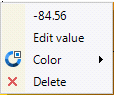
The Arrow context menu
Value Displays the current value of the define point.
Edit value Edit the value of the define point, which allows you to change the way colors are assigned to the range of the property. Enter a new value in the window that appears. The arrow is shifted accordingly. Alternatively, you can click and drag the arrow to a new position.
Color Set the color of the define point.
Delete Delete the defined point from the colorset.
Min/max values context menu (black vertical lines left and right)
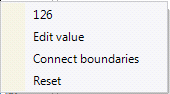
The Min/max values context menu click to enlarge
Value Displays the min and max value used for the colorset. These values are based on the min and max values of the selected property.
Edit value Edit the min or max value of the colorset.
Connect boundaries Forces min and max values to be symmetrical with respect to zero, e.g., for seismic amplitude properties.
Reset Reset the color set boundaries to the defaults for the selected property.
Mouse actions
There are a number of direct mouse actions possible in the Colorsets pane for easy editing:
Double click in the top define points bar to add a new colorset definition point at that location.
Drag a colorset definition point (arrow) to change its location.
Shift + click Hold down the Shift key and click to select multiple definition points, then drag to change all their locations at the same time.
With the Opacity Control Line, you can set a different opacity value for different color (ranges) in the colorset. The Opacity Control Line is only available for the display of a seismic property, and is visible when you select the Use Volume Rendering option from the context menu of the seismic volume. Opacity control can help you bring out specific property values more clearly.
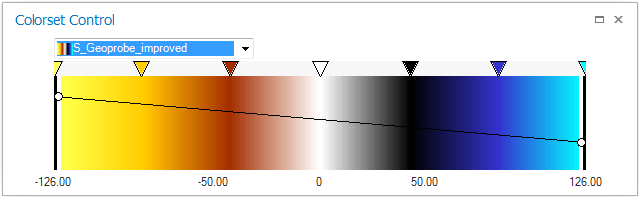
The Opacity Control Line click to enlarge
Opacity increases from top to bottom of the color bar - a control point at the top of the color means high opacity, a control point at the bottom means low opacity.
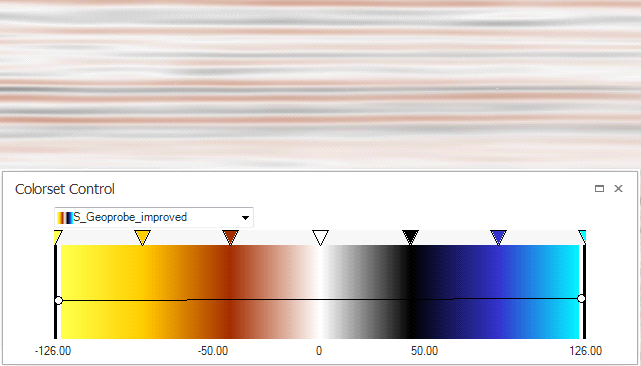
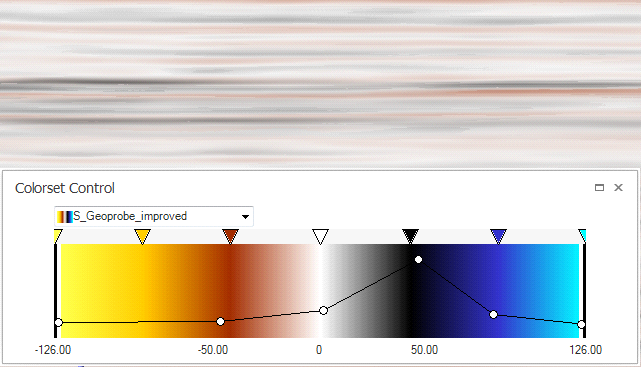
Opacity control line - opacity for black is high, all other colors in the colorset are shown more transparent. click to enlarge
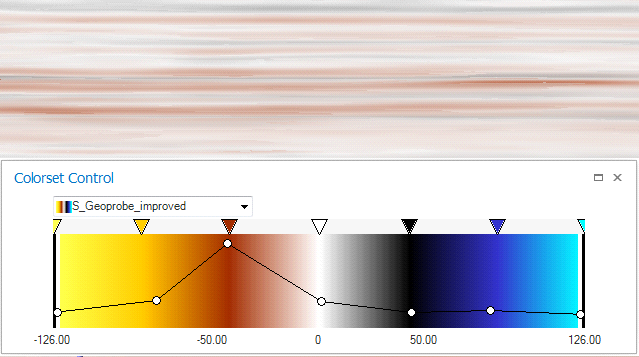
Opacity control line - opacity for red is high, all other colors in the colorset are shown more transparent. click to enlarge
Double click on the line to add an opacity control point (a white dot on the line). Right-click on a control point and select Delete to remove a point. Drag with your mouse to move control points or line segments.
The control point context menu
Right-click on a control point to open its context menu.
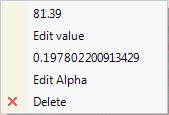
The Arrow context menu click to enlarge
Value Displays the current value of the colorset control point.
Edit value Edit the value of the define point, which allows you to change the way colors are assigned to the range of the property. Enter a new value in the window that appears. The point shifted accordingly. Alternatively, you can click and drag the point to a new position.
Value Displays the current value of the opacity.
Edit Alpha Edit the value of the opacity of the control point.
Delete Delete the defined point from the colorset.